
Most Bluetooth OBD2 adapters that won’t pair are blocked by one of three things: Android’s location permission for Bluetooth scanning, a mismatch between a BLE and a Classic Bluetooth (SPP) adapter, or a PIN prompt expecting a default code. Check all three in order before assuming the adapter is broken.
- On Android 11 and lower, Bluetooth scanning requires a location permission and Location turned on — this is a documented Android platform rule, not a bug in your app.
- Bluetooth OBD2 adapters come in two incompatible radio types: Classic Bluetooth (which uses the Serial Port Profile) and Bluetooth Low Energy. An app built for one generally cannot talk to the other.
- iPhone’s public Bluetooth framework supports Bluetooth Low Energy, not Classic Bluetooth’s Serial Port Profile, which is why many cheap Classic-only adapters never show up on iPhone at all.
- If your phone’s Bluetooth settings ask for a PIN, the three most common defaults on low-cost adapters are 1234, 0000, and 6789 — a rule of thumb, not a universal standard.
- Work through the checks in order. Skipping the permission check is the single most common reason people conclude a working adapter is “broken.”
Why Won’t It Pair? Three Likely Blockers
A Bluetooth OBD2 adapter that “won’t pair” is usually not damaged. It’s being blocked by a permission setting, a protocol mismatch, or a PIN code — three separate issues that most troubleshooting posts only cover one at a time. If you’re brand new to using a scan tool at all, our first-time scanner guide covers the basic setup steps this article assumes you’ve already tried, like plugging the adapter in with the ignition on.
It also helps to know what “won’t pair” means versus a related but different error. Pairing happens before the scanner app ever talks to your car; it’s strictly a conversation between your phone and the adapter’s Bluetooth radio. If your phone and adapter pair successfully but the app still can’t read the car, that’s a separate problem covered in our “no link detected” guide. This article covers the pairing step itself: your phone never finds the adapter, finds it but can’t connect, or asks for a PIN that doesn’t work.
Blocker 1: Android’s Location Permission for Bluetooth Scanning
If you’re on Android and your scanner app’s device list stays empty even though the adapter is powered and in range, the cause is very often a permission setting rather than a hardware fault. Android’s own developer documentation sets specific rules for which permissions an app needs before it can scan for nearby Bluetooth devices, and those rules changed between older and newer versions of Android.
On Android 11 (API level 30) and lower, Android’s documentation states that an app needs the ACCESS_FINE_LOCATION permission to scan for Bluetooth devices at all, “because, on Android 11 and lower, a Bluetooth scan could potentially be used to gather information about the location of the user.” That means your phone’s system Location setting has to be switched on, and the scanner app has to be granted location access, or it simply won’t see any Bluetooth devices — including a perfectly healthy adapter.
On Android 12 (API level 31) and higher, Google loosened this rule: apps can declare the BLUETOOTH_SCAN permission with a flag called neverForLocation, which lets them scan for Bluetooth devices without needing location permission or location services turned on at all. In practice, though, many OBD2 scanner apps were built to support older phones and still request the location permission the old way, so you may still see a prompt asking you to enable Location even on a new phone. If your app asks for “Nearby devices” or “Location” access during setup, grant it; refusing that prompt is one of the most common reasons an otherwise fine adapter never shows up in the app’s device list.
Blocker 2: BLE vs. Classic Bluetooth (SPP) Mismatch
Bluetooth OBD2 adapters are not all built on the same radio technology, and this is the blocker most people never check. There are two distinct types in common use, and an app built for one cannot simply talk to the other:
Classic Bluetooth adapters use a profile called the Serial Port Profile (SPP), defined by the Bluetooth Special Interest Group (SIG) as the set of requirements for “setting up emulated serial cable connections using RFCOMM between two peer devices.” In practice, this makes the adapter behave like an old-fashioned serial cable over a wireless link. Classic/SPP adapters are the type you pair through your phone’s own system Bluetooth settings menu, the same place you’d pair wireless earbuds.
Bluetooth Low Energy (BLE) adapters use a completely different data model called GATT (services and characteristics), designed for low power draw rather than continuous serial data. The Bluetooth SIG’s SPP specification has no defined BLE equivalent, so a BLE adapter cannot emulate the same serial connection a Classic/SPP adapter does. BLE adapters typically do not need to be paired through your phone’s system Bluetooth settings at all; the scanner app finds and connects to them directly using its own built-in Bluetooth scanning, which is also why the Android location-permission rule above specifically targets BLE scanning.
This split matters most on iPhone. Apple’s own Core Bluetooth framework — the only public Bluetooth API third-party iPhone and iPad apps can use — is documented as providing “the classes needed for your iOS and Mac apps to communicate with devices that are equipped with Bluetooth low energy wireless technology.” It is built around Bluetooth Low Energy peripherals. A Classic Bluetooth adapter using the Serial Port Profile has no equivalent public API on iPhone, which is why many budget Classic-only OBD2 adapters never show up in any iPhone scanner app’s connection screen, no matter how many times you try to pair them — it isn’t a settings problem, it’s a protocol your iPhone’s apps can’t reach.
On Android, both adapter types can generally work, but your scanner app still has to support the one you have. If pairing fails specifically on your phone’s system Bluetooth screen (for a Classic adapter) or inside the app’s own connection screen (for a BLE adapter), check your adapter’s documentation or markings for “BLE,” “Low Energy,” or “4.0” versus “Classic” or “3.0,” and confirm your app lists that type as supported before troubleshooting further.
Blocker 3: PIN Code Prompts
If your phone’s Bluetooth settings show a prompt asking for a PIN or passcode during pairing, that’s normal for many Classic Bluetooth OBD2 adapters and is not a sign of a fault. This PIN is a fixed code built into the adapter’s Bluetooth firmware by its manufacturer. It has nothing to do with your car, your phone, or any account, and on most inexpensive adapters it cannot be changed.
There’s no single official standard for what this code is, so treat the following as a rule of thumb rather than a guaranteed answer: try 1234 first, then 0000, then 6789 if the first two fail. These three are the defaults most commonly built into low-cost Classic Bluetooth adapters based on the chips commonly used in them. If none of the three work, check whether the adapter came with printed documentation listing a different code, since a small number of models do ship with a unique or changeable PIN.
The Three-Blocker Checklist
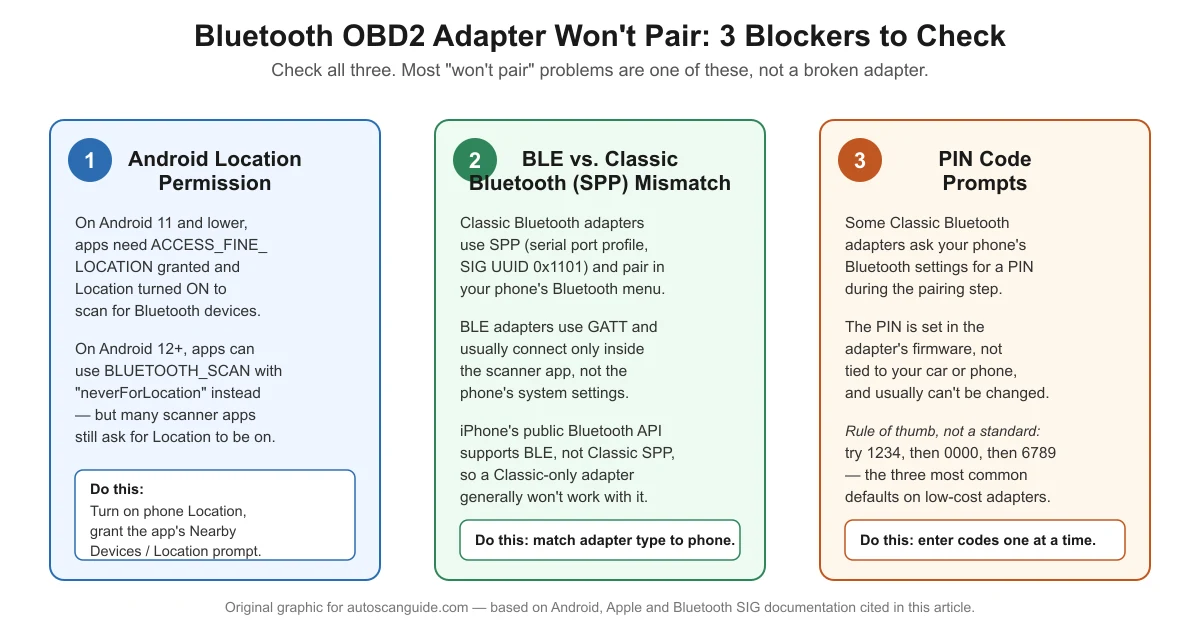
Here’s the full checklist as a graphic, followed by the same information in a table.
| Blocker | How it shows up | What to do |
|---|---|---|
| Android location permission | Scanner app’s Bluetooth device list stays empty; adapter never appears to be found. | Turn on phone Location; grant the app’s “Nearby devices” or “Location” permission prompt. |
| BLE vs. Classic (SPP) mismatch | Adapter never appears in phone’s system Bluetooth settings (BLE) or app can’t find a Classic adapter it expects to pair via settings. | Check whether your adapter is BLE or Classic, and confirm your app and phone (especially iPhone) support that type. |
| PIN code prompt | Phone’s Bluetooth settings ask for a numeric code before pairing completes. | Try 1234, then 0000, then 6789. Check adapter documentation if none work. |
Other Quick Fixes Worth Trying
If all three blockers check out and the adapter still won’t pair, a few basic resets solve a surprising number of remaining cases. According to OBDLink’s own troubleshooting documentation for its Bluetooth adapters, unplugging the adapter and plugging it back in can take 45–60 seconds before it reappears in a connection list, so don’t assume failure too quickly after a replug. The same documentation recommends power-cycling your phone’s Bluetooth (turning it off and back on in Settings) and checking that no other app is already connected to the adapter, since most Bluetooth OBD2 adapters can only hold one active app connection at a time.
A few other things worth confirming before you give up on an adapter:
- The car’s ignition is on. Most OBD2 ports only supply power to the adapter when the ignition is in an “on” or “accessory” position, so an adapter with no power will never appear in any Bluetooth scan.
- You’re pairing from inside the scanner app’s own connection screen, not just the phone’s system Bluetooth settings, especially for a BLE-based adapter.
- If your phone already shows the adapter as “paired” but the app still can’t connect, try removing (forgetting) the device in your phone’s Bluetooth settings and pairing it again from scratch.
When to Consider a Different Adapter or App
If you’ve confirmed the location permission, the adapter’s Bluetooth type matches what your phone and app support, you’ve tried the common PIN codes, and basic resets haven’t helped, the most likely remaining explanations are a genuinely faulty adapter or a true incompatibility between your specific phone and that specific adapter model. Testing the adapter with a second phone, or testing a different adapter with your phone, is the fastest way to tell which side of that is the problem — the same logic used to separate scanner-side from car-side faults in our “no link detected” guide.
If a second phone also fails to pair with the same adapter, the adapter itself is the more likely fault. If the same adapter pairs fine with a different phone, the issue is specific to your phone’s Bluetooth stack or app settings, and reinstalling the scanner app or checking for a phone software update is worth trying next.
Frequently Asked Questions
Why does my OBD2 adapter show up in my phone’s Bluetooth settings but the scanner app still can’t connect?
This usually means the adapter paired at the Bluetooth radio level but the app itself hasn’t been told to use it, or the app needs its own separate connection step inside its settings menu rather than relying on the phone’s system pairing. Open the scanner app and look for a connection or device-selection screen, since many apps, especially BLE-based ones, connect directly rather than through the phone’s Bluetooth settings at all.
Does turning on Location on my phone mean the app can track my location?
Not necessarily. Android requires the location permission for Bluetooth scanning on Android 11 and earlier because, technically, scan results could be used to infer location, not because every app that needs this permission is actually tracking you. On Android 12 and higher, apps can use a flag called neverForLocation to scan for Bluetooth devices without needing location data at all. If you’re concerned, check the app’s own privacy policy rather than assuming the permission prompt itself means tracking.
Can I use any Bluetooth OBD2 adapter with an iPhone?
No. iPhone’s public Bluetooth framework for third-party apps is built for Bluetooth Low Energy devices, not Classic Bluetooth’s Serial Port Profile. A Classic-only adapter generally will not pair with third-party scanner apps on iPhone at all, regardless of troubleshooting steps. Check your adapter’s specifications for “BLE” or “Bluetooth Low Energy” support, or use a Wi-Fi adapter instead, before assuming a pairing problem is fixable through software.
I entered the default PIN codes and none of them worked. What now?
Check any printed documentation that came with the adapter first, since a small number of models use a different or changeable code. If there’s no documentation and none of the common defaults work, try removing the device from your phone’s paired-devices list completely and starting the pairing process over, since a partial or corrupted pairing attempt can sometimes cause repeated PIN prompts even with the correct code.
Sources
- Android Developers, Bluetooth permissions — checked November 2026
- Apple Developer Documentation, About Core Bluetooth — checked November 2026
- Bluetooth SIG, Serial Port Profile 1.2 Specification — checked November 2026
- OBDLink, Troubleshoot Connection Issues (one adapter brand’s own support page, cited for its general reset/power-cycle steps only) — checked November 2026
autoscanguide.com Editorial Team. Last updated: November 12, 2026.

1 COMMENTS